Graveyard Keeper 2 Planner & Calculator
An independent companion built to solve real gameplay tasks in Graveyard Keeper II. Estimate visible graveyard rating markers, check verified Demo save carryover rules, and work through early automation, fishing, building, and performance blockers with Demo-specific guidance.
Version scope: The full game released September 22, 2026. The current calculator and early-game guides still use clearly marked Demo evidence where full-game rules have not been checked. The publisher announced Demo save carryover. An earlier Nintendo transfer warning is no longer listed; keep the Demo save until you confirm the import.
Graveyard Quality & Rating Calculator
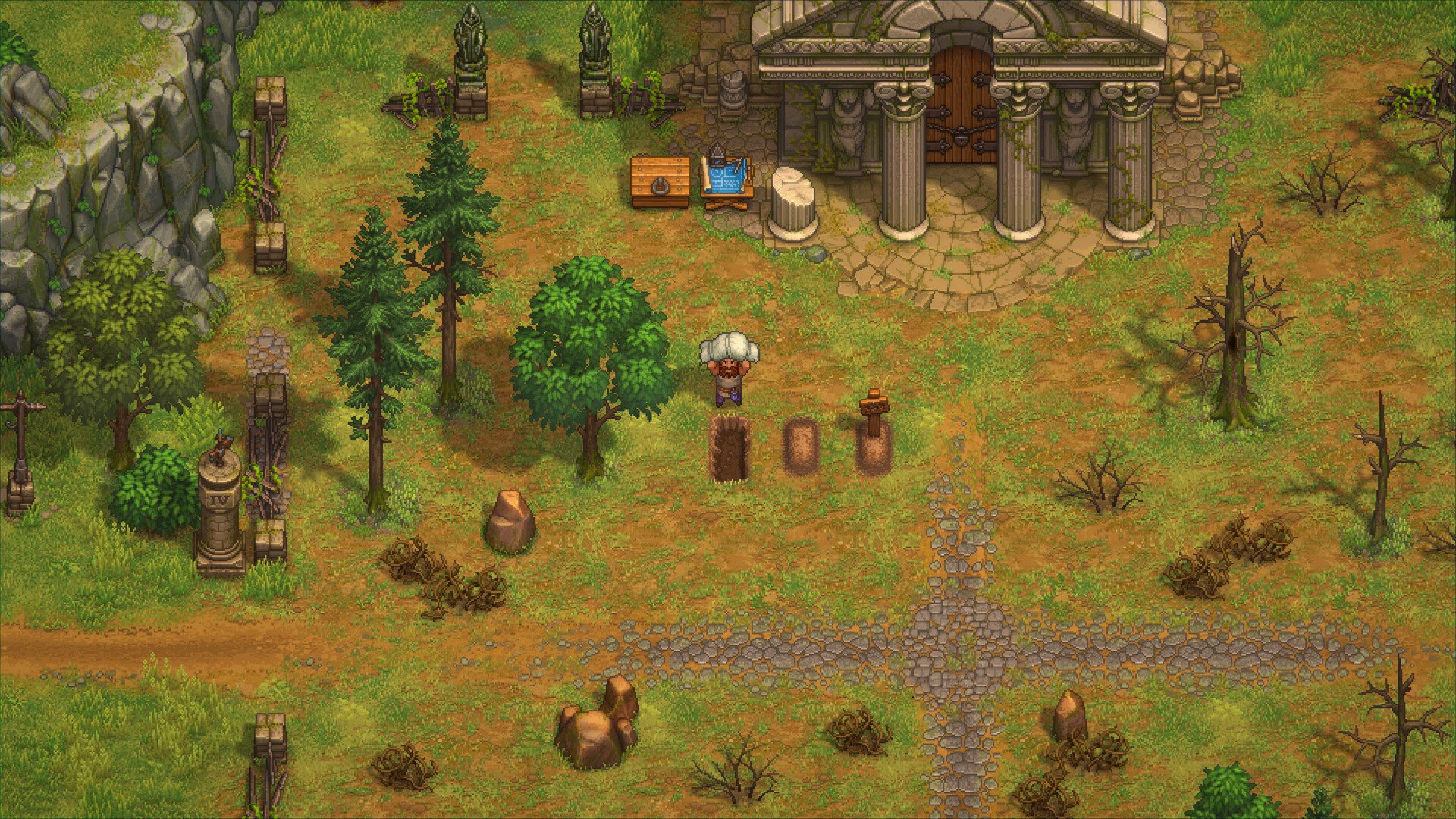
The Demo HUD exposes a live graveyard score and per-object markers. A developer capture shows Graveyard 9 with positive decoration values and negative clutter markers.
Use this evidence-limited estimator to compare the visible markers in a layout. It is not a complete save-data parser or a promise of every full-release scoring rule.
Visible Layout Markers
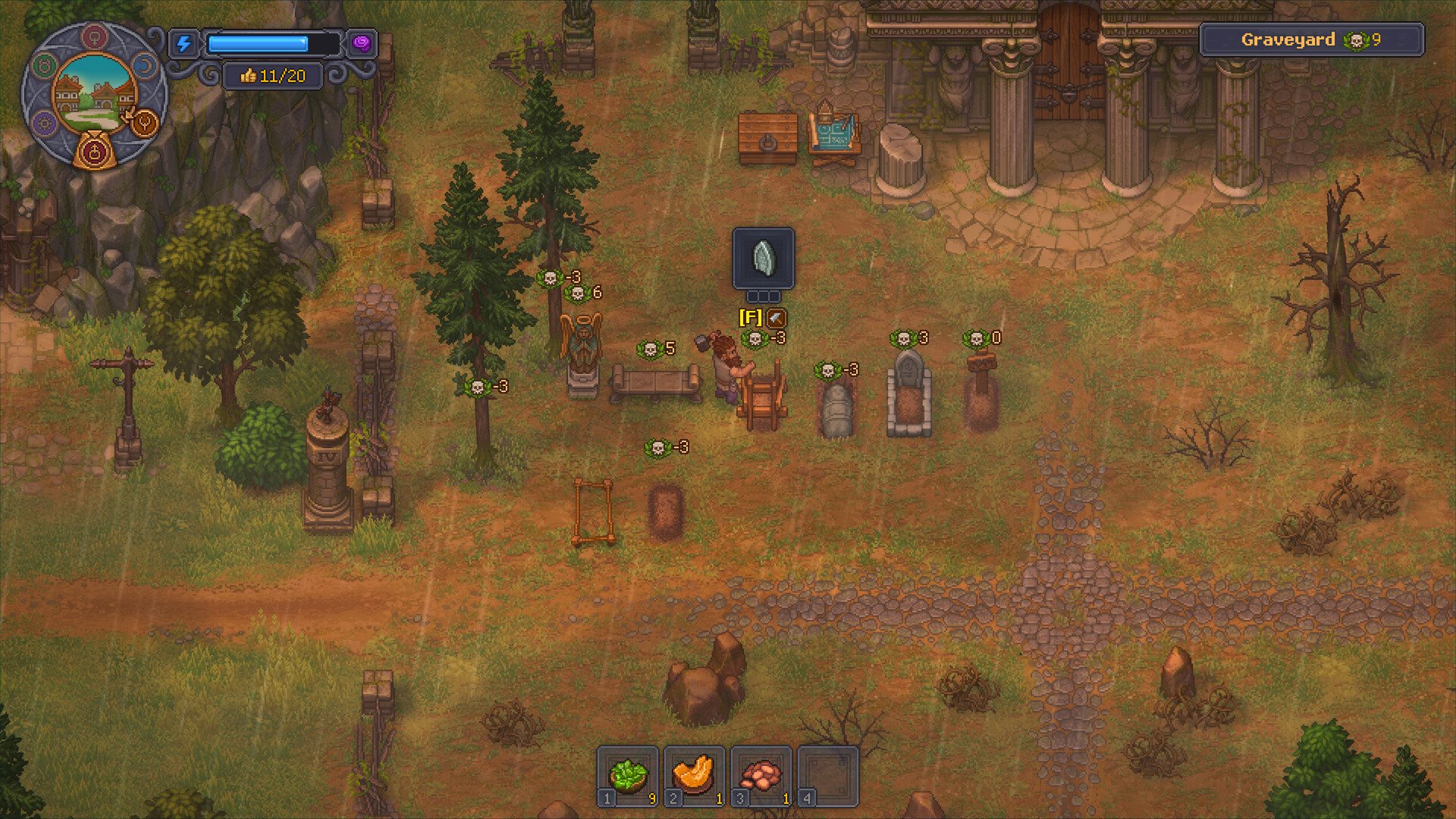
Graveyard 9 in the top-right HUD and visible +6, +5, +3, +0, and -3 markers. These markers support the estimator; they do not establish every full-release formula term.
| Element / Object | Score Effect | Evidence Scope | Player Action & Strategy |
|---|---|---|---|
| Weeds / Dead Trees / Brush | -3 Penalty | HUD marker | Clear visible negative markers first; exact costs are not covered by this estimator. |
| Open / Unfilled Grave Pit | -3 Penalty | HUD / layout context | Compare the visible marker before treating this as a universal rule. |
| Wooden Cross Grave | +0 Base | HUD marker | Use the neutral marker as a comparison point. |
| Upgraded Stone Headstone | +3 Rating | HUD marker | Compare the visible positive marker; recipe and unlock costs are not verified here. |
| Stone Bench | +5 Rating | HUD marker | Compare the visible positive marker; material efficiency is not established here. |
| Angel Statue | +6 Rating | HUD marker | Compare the visible positive marker; progression thresholds are not established here. |
Demo Scope, Platform Availability & Save Transfer
Official store listings do not all provide the same save-transfer detail. The table below separates what each listing states from information it does not provide.
Open the platform and save page
Getting around between tasks? Activate Milestones and use fast travel.
Demo Length & Scope Boundary
Official sourceThe official Steam Demo page confirms that the Demo contains approximately 3 to 4 hours of gameplay, beginning from opening tutorial steps through The Town introduction.
This is the publisher’s estimate, not a time limit. Your playtime will vary with exploration and crafting.
Save Data Carryover Policy
Save TransferSteam PC: TinyBuild has explicitly confirmed that Demo save files will carry over directly into the full release on Steam upon purchasing the game.
Console saves: The publisher announced Demo carryover. Its earlier Nintendo transfer warning is absent from the September 29 support list; that alone does not prove every import works. On Switch 2, keep the Demo installed and look for the import option on a save slot; if it is missing, preserve the Demo save and check official support. Cross-platform transfers are not confirmed.
| Platform | Demo Availability | Save Carryover | Official Store Action |
|---|---|---|---|
| Steam (PC) | Available (Free) | Confirmed direct carryover | Steam Demo Store |
| PlayStation 4 / 5 | Available (Free Demo) | Transfer details not confirmed | PlayStation Demo |
| Xbox Series X/S | Available (Free Demo) | Transfer details not confirmed | Xbox Store |
| Nintendo Switch 2 | Demo announced by the publisher | Earlier transfer warning no longer listed; verify your imported progress | Read the platform-specific checks |
Platform update, September 23, 2026: the Demo announcement names Switch 2, not the original Switch. Check your regional eShop for the download. The full game is Steam Deck Verified; that status does not separately certify the Demo.
Can I play in a browser?
Downloadable DemoNo official browser build was found: the official store pages provide downloadable Demo/store actions, not a playable HTML5/WebGL build. Treat third-party “play in browser” claims as unverified and use the official storefront links above.
Zombie Automation & Workshop Throughput
Official store material confirms automation and zombie workers as core systems. A developer capture shows a Town Workshop 66/75 banner, conveyors, storage, and active progress bars. The exact queue, input, output, and power rules still need in-build verification.
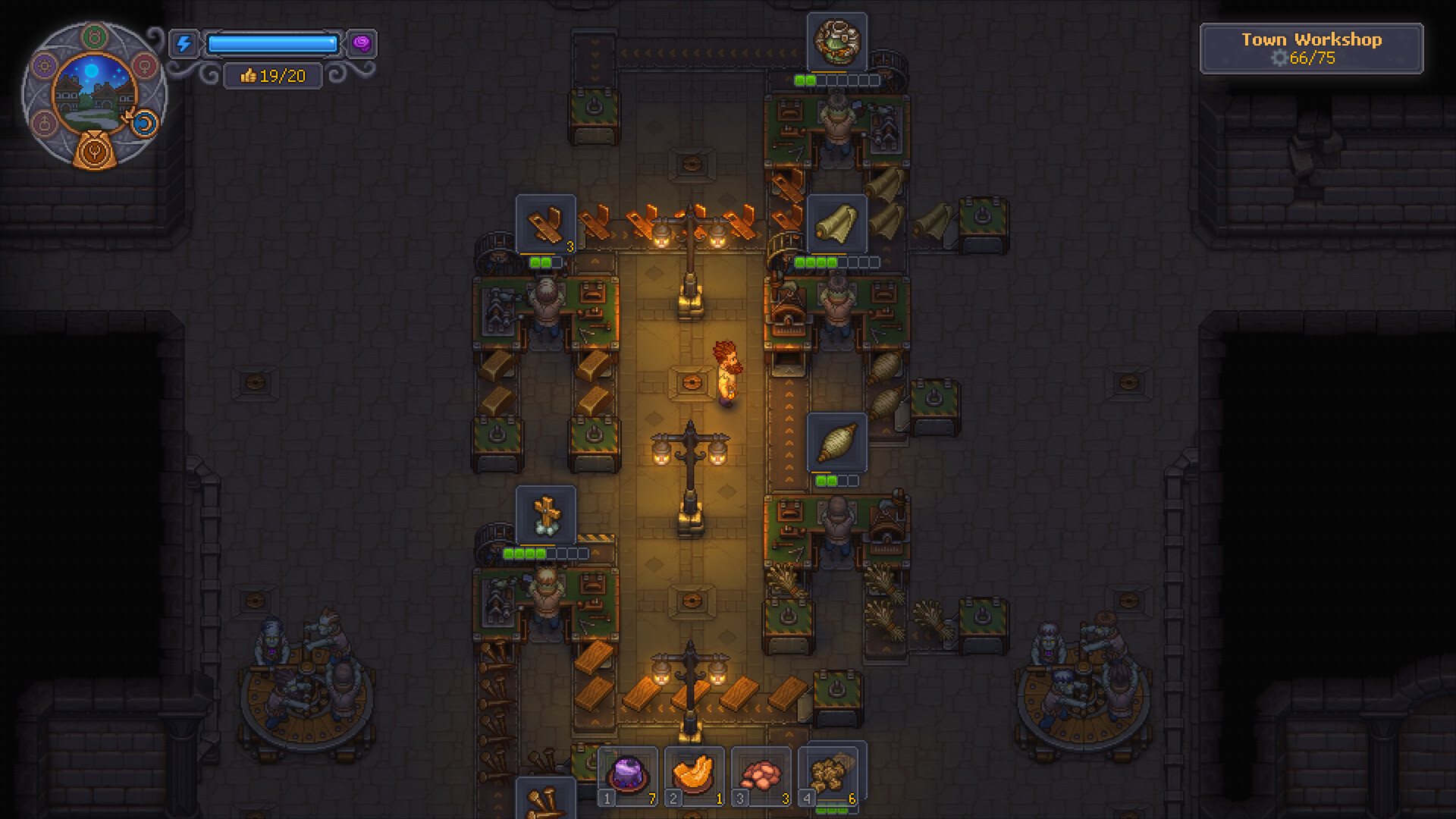
Diagnostic Checklist: "Why Are My Zombie Workers Stalled?"
If a line ceases production, use these checks as a starting diagnostic—not as a complete rules engine:
-
1
Station Queue Count
Check the selected job, remaining quantity and the worker’s own skill requirement. A progress bar alone does not prove the next craft can start.
-
2
Input Crate Proximity & Belt Feed
Check the visible input crates and conveyor route before changing the worker. The exact adjacency and pickup radius are not established by the available evidence.
-
3
Output Destination Jam
Inspect the output side and storage capacity for a visible jam. Do not treat a full-output stop as a confirmed universal rule until the build is tested.
-
4
Capacity & Progress Banner
Before moving a stalled worker, check its mastery, tool, assigned job, incoming materials and output space. Older Demo reports described a skill-point reset when moving workers; that issue is not on the current support list, so do not present it as a confirmed launch-build bug.
Demo Blocker Solutions & Gameplay Guides
Help with common Demo roadblocks, using publisher guidance, visible controls, and clearly identified player reports.
How to Fish (Controls & Spot)
Demo GuideStart by separating casting problems from losing an already-hooked fish:
- Use your rod at an active fishing spot.
- Walk onto a designated wooden pier or stream bank.
- Use a valid fishing spot and follow the visible controller prompt; the supplied official capture shows (A) Tug the rod and (B) Exit.
- Once hooked, try the guide’s community-reported pull/release routine. Follow your platform’s prompts; exact timing and upgrade requirements are not established.
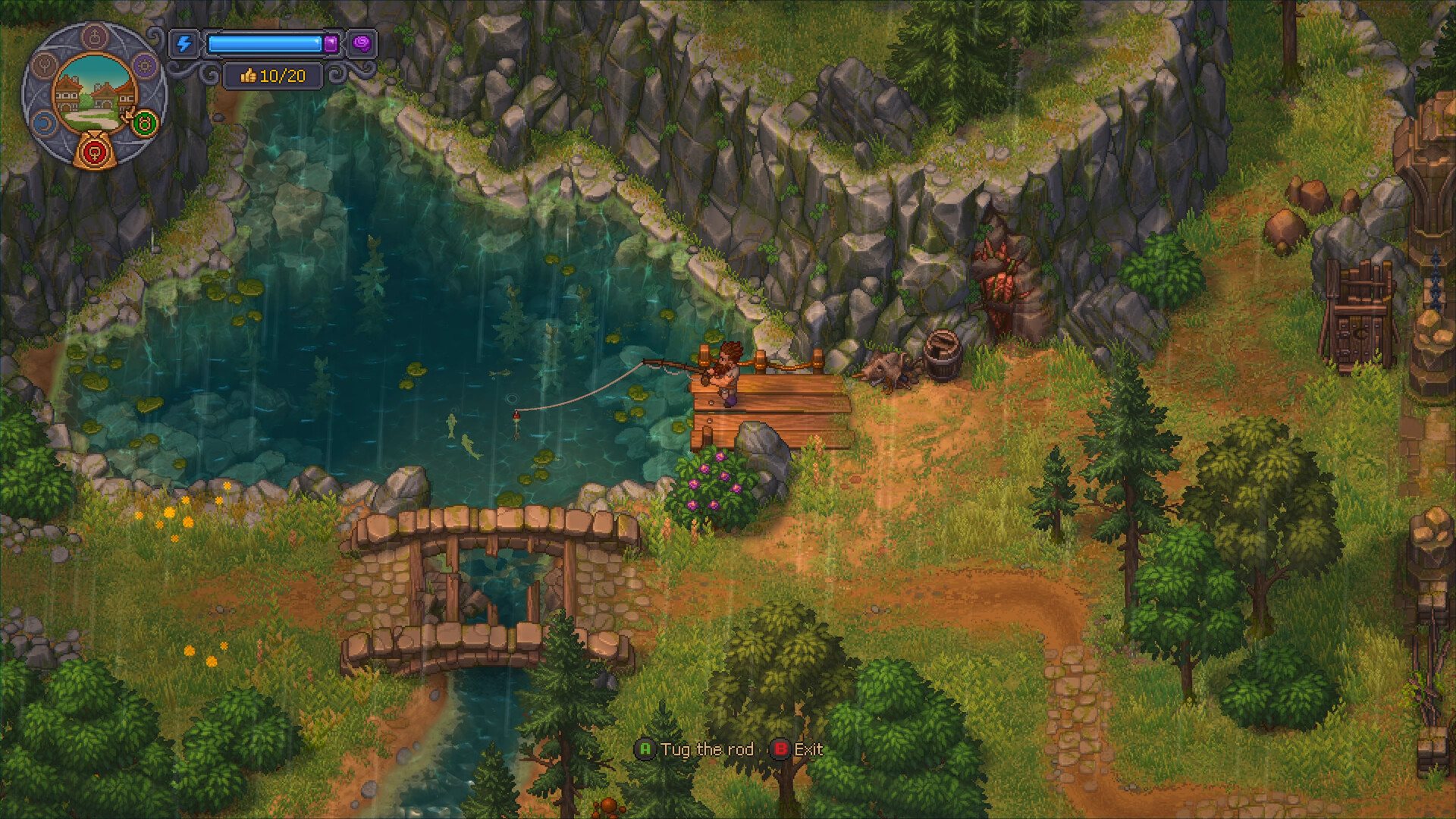
(A) Tug the rod with swimming fish.Building Mode Grid & Tech Gating
Placement HelpStuck trying to place workshops or craft paper?
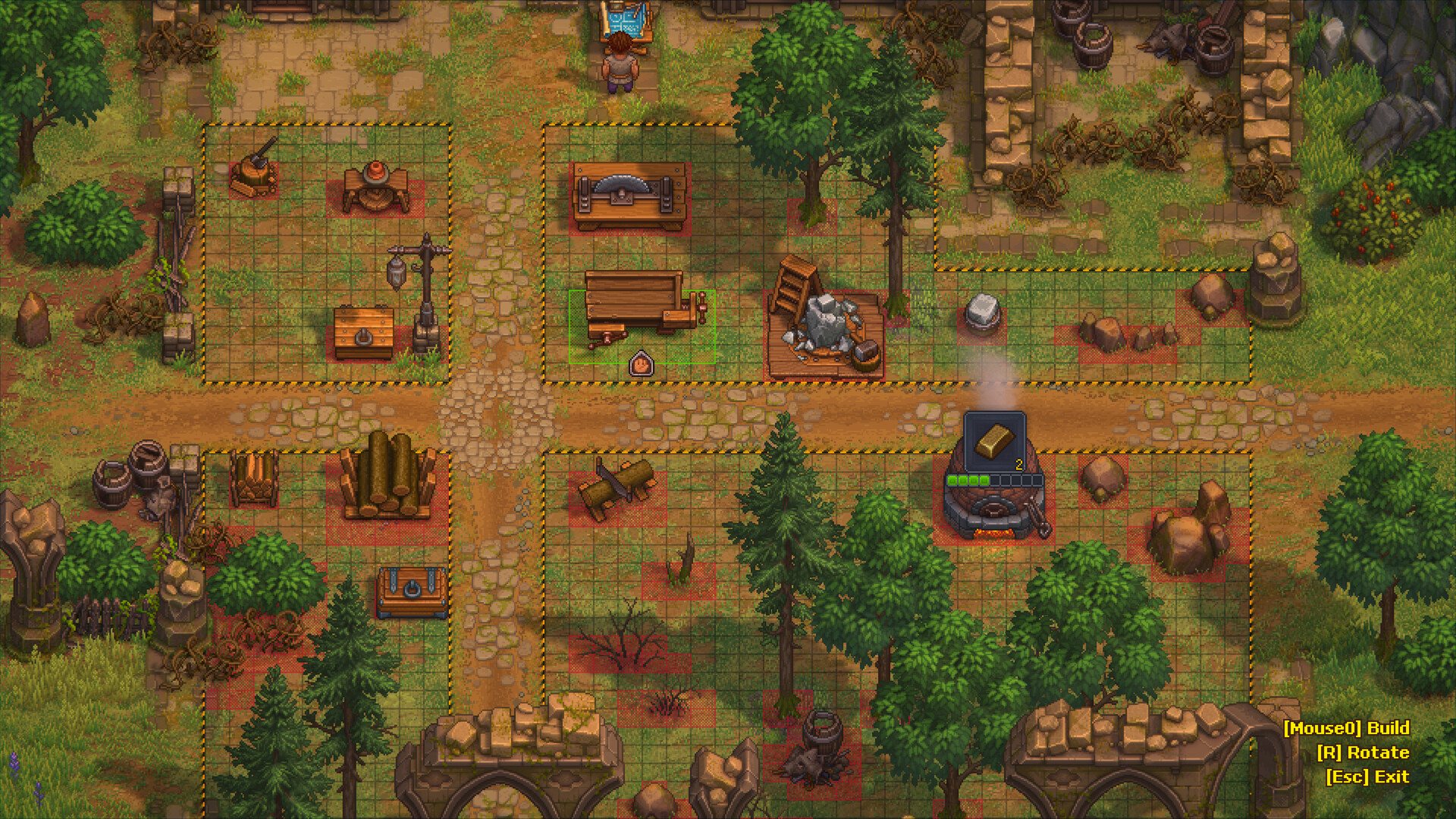
- Workstation placement: Enter building mode and compare the yellow plot boundary and placement grid with the screenshot below. If the preview refuses the placement, read the requirement shown by your current build before clearing or moving anything.
- Controls:
[Mouse0] Build,[R] Rotate,[Esc] Exit. - Paper Crafting: Paper availability and the exact Writing Supplies path remain unresolved in the current evidence. Treat “paper softlock” claims as a question to verify, not a confirmed route.
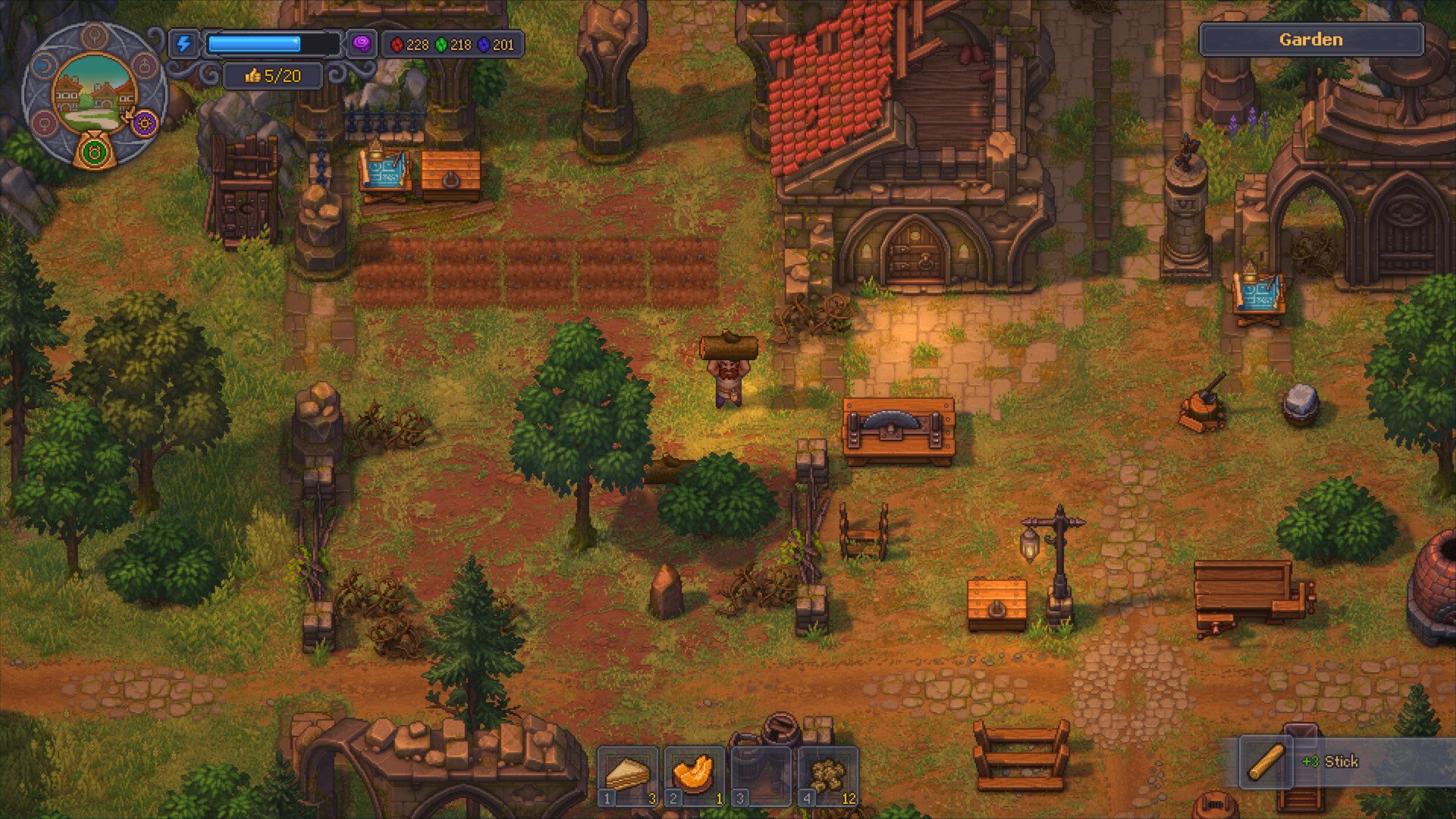
Missing a research currency? Check red, green and blue Technology Points before trying to unlock another Building node.
Performance & Memory Leaks
Performance HelpOfficial tinyBuild support recommendations for frame drops:
- Extended Session Degradation: tinyBuild advises saving and relaunching after several hours when memory accumulation causes temporary drops; no universal FPS result is promised.
- PC Save & Log Location:
%USERPROFILE%\AppData\LocalLow\Lazy Bear Games\Graveyard Keeper 2. - Submit reproducible bugs with log files attached to tinyBuild support.
Official references
Sources & updatesStore listings and publisher support pages below support the platform and troubleshooting information. Screenshots show visible UI; they do not establish every game rule.
- Valve / Steam: Graveyard Keeper 2 Store Page & Official News. Developer: Lazy Bear Games; Publisher: tinyBuild. Release date target Sep 22, 2026. ↩ back
- Valve / Steam Demo: Graveyard Keeper 2 Demo Store Page (App ID 5075680). Released Sep 14, 2026. Confirms 3-4 hour duration and save file carryover to full game. ↩ back
- Sony PlayStation Store: Graveyard Keeper 2 Demo product page. Free Demo listing for PS4 and PS5 in the US store. ↩ back
- Microsoft Xbox Store: Xbox Store ID 9p09xqgrvhbx. Verified free Demo product page for Xbox Series X/S. ↩ back
- tinyBuild Official Support: Graveyard Keeper 2 Knowledge Base & Troubleshooting. General troubleshooting and memory degradation documentation. ↩ back