Which action should you try?
- Red: mine stone or clear junk, then check the red counter after the action.
- Green: gather berries or mushrooms, or harvest a crop.
- Blue: try anatomy or autopsy work rather than repeating basic gathering.
These are early-game actions to test, not guaranteed yields. A release-updated guide groups chopping wood with red points, while a build-data mechanics reference says wild trees and bushes mostly give green. Do not rely on chopping wood for a missing red-point cost without checking the pickups and counter in your build.
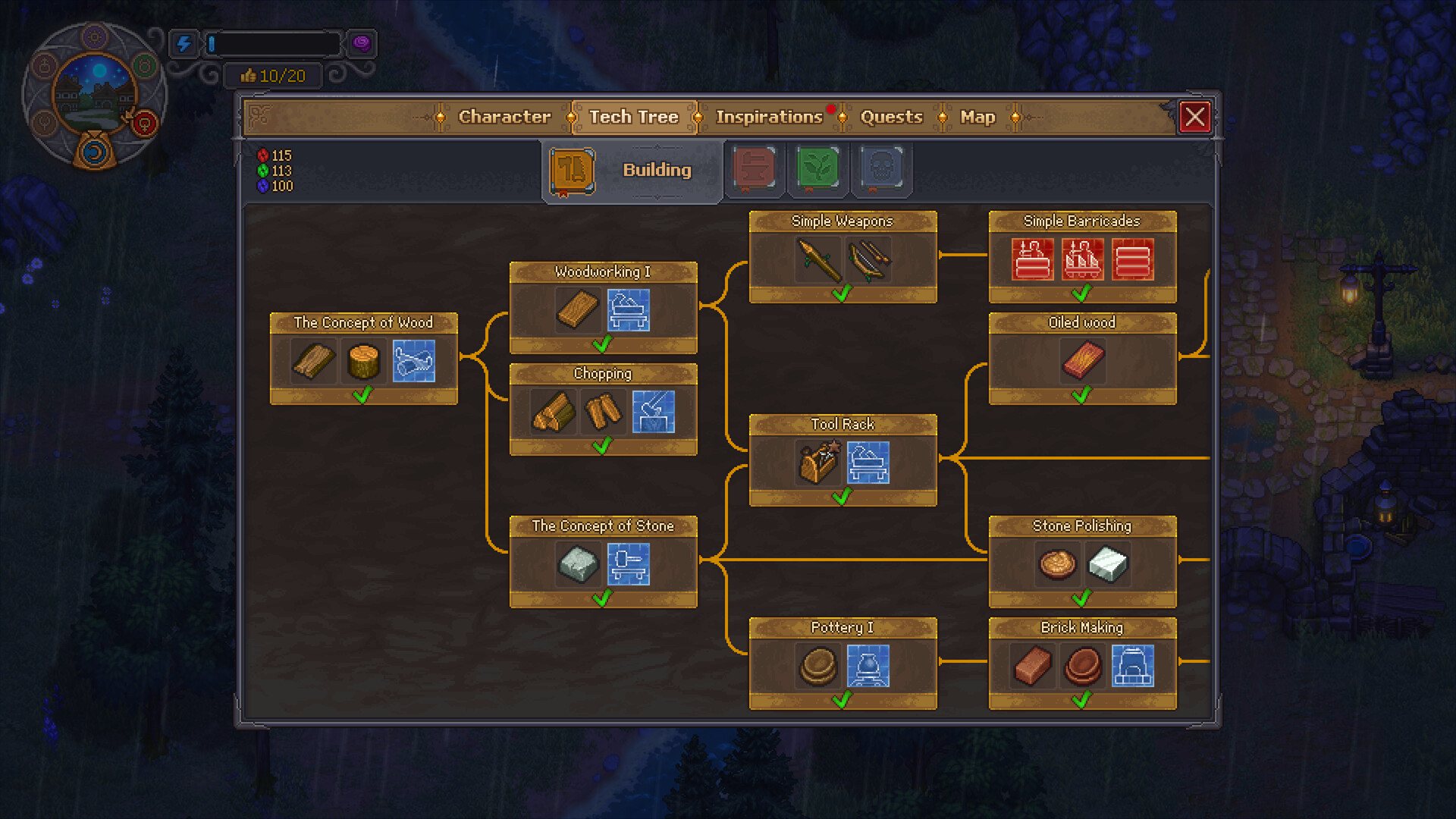
Match the missing color to an activity
| Missing currency | Early action to test | Before spending |
|---|---|---|
| Red | Mine a stone node or clear junk; inspect the dropped points and counter after one action. | Useful for early Building and Metallurgy research. Check the exact cost on your chosen node. |
| Green | Gather wild food or harvest a crop; compare your counter before and after. | Often needed for Farming and Cooking. Not every nature action gives the same amount. |
| Blue | Progress to corpse anatomy or autopsy tasks and watch the blue counter. | Associated with Anatomy and Alchemy. Do not assume a first-game book or recipe still provides it. |
Points can remain on the ground before collection, so inspect the pickup as well as the counter. If nothing changes, do not repeat a costly action on the assumption that it awards the missing color; check the reward in your own build first.
Enough points, but the technology is still locked?
- Open the target node: read all three colored costs, not just the largest counter.
- Trace its incoming line: the official Building screenshot shows The Concept of Wood branching toward Woodworking I and Chopping; later paths connect through tools and stone work. Unlock the visible prerequisite first.
- Check non-point gates: story or NPC progress can also control availability. A full point balance does not bypass a quest lock; follow the exact condition the UI shows.
- Recheck the desired recipe or station: buying a technology may unlock a blueprint, but it does not automatically supply materials or place a workbench.
This is a way to diagnose a blocked node, not a full-release graph or optimized unlock order. Costs, hidden nodes and all later quest gates require a current-build audit before this site can offer a complete planner.
Tech Points versus Inspiration
The developer describes a retained Technology Tree plus a new talent system. The release-updated gameplay guide shows routine actions filling a separate Inspiration meter; a filled bar grants a star to spend on perks or talents. Check the Inspirations tab for that star. The red, green and blue counters instead fund the visible Tech Tree costs.
If you need a worker's mastery or a personal perk, look at the relevant worker and Inspiration screens; collecting blue Tech Points alone is not a substitute. Likewise, a star does not unlock a tech node whose colored currency or prerequisite is missing. This page does not state a fixed Inspiration gain rate or universal Faith cost.
Continue from the specific blocker
- Need Pottery for the rod quest? Follow the fishing unlock checks, then inspect Pottery I in the Building tree.
- A zombie still stops after one craft? Use the worker, job and supply checklist; the character's Tech Points do not diagnose every station fault.
- Trying to reach a later location? Milestone activation is separate from Tech Point spending.
Verification notes
- Official Steam game page — developer Tech Tree screenshot used above; the UI visibly shows counters and node connections.
- Developer news and devlogs — confirms the Technology Tree and new talent system.
- Release-updated beginner guide — gameplay screenshots, point sources, Inspiration and story gates.
The linked build-data reference above documents the color conflict; this site has not replayed the actions in a full-game save. Check the point color and amount in your own build.